Help Center

Callie scheduling assistant overview

Updated June 24, 2026·10 min read

Beta

Callie is currently in private beta for select users. Sign up for early access.
Play button

What is Callie?

Callie™ is Calendly's AI scheduling assistant. Add Callie to an email conversation, the way you would a human assistant, and simply describe what you need — for example, "Callie, help us find time next week." Callie suggests times based on your availability and preferences, coordinates with your invitee, and helps schedule the meeting for you.

For example, you can:

  • Schedule meetings with a customer, prospect, or client directly from an email thread
  • Set up follow-up meetings without searching for a scheduling link
  • Share availability by adding Callie to the conversation and describing what works for you
  • Offer a one-time exception, like a 50-minute meeting, Saturday morning availability, or a different meeting location

Why use Callie for scheduling?

  • Just one email to remember: Instead of choosing between different scheduling links, you only need to remember one email address: add callie@calendly.com and say what you need.
  • Flexible enough for real life: Callie adapts when the meeting doesn’t follow the usual rules, like a different time, duration, location, or availability window — without you having to change your setup.
  • Works in the flow of the conversation: Because Callie understands context and works right in the email thread, meetings get scheduled without switching tools, finding links, or changing settings.

Before you begin

Callie works with the email account that you use to login to Calendly. Send from that email so Callie recognizes and responds to you. This means:

  • Shared mailboxes won't work with Callie
  • You'll need to send from the same email each time

Both Callie and scheduling links save you time. Choose based on your situation.

Callie works best for one-on-one meetings when you’re emailing your invitee, and scheduling links work best for meetings with multiple hosts, group scheduling, or team coordination.

Callie

Scheduling link

Use when

You're already emailing with one person about meeting

You have multiple hosts, need group scheduling, use a shared mailbox, or are coordinating with a team

How it works

Add callie@calendly.com to your email thread (in the address bar)

Share a booking link with the invitee(s)

What the invitee sees

Available times directly in the email thread

Your booking page with your availability and meeting details

Best for

Seamless scheduling within ongoing conversations

Self-service booking and complex scheduling scenarios

How Callie works

  1. Set your defaults. Tell Callie what type of meeting to schedule by default (like a 30-minute one-on-one Zoom call). Callie uses these settings when you don't give other instructions. You can ask Callie to make changes for a specific meeting later.
  2. Add Callie to an email thread by opening a new email or replying to an existing message. Put callie@calendly.com in the To: or CC: field of the address bar, then send a message like, "Callie, help us find time next week." Callie doesn't work in the BCC: field but works with any email provider.
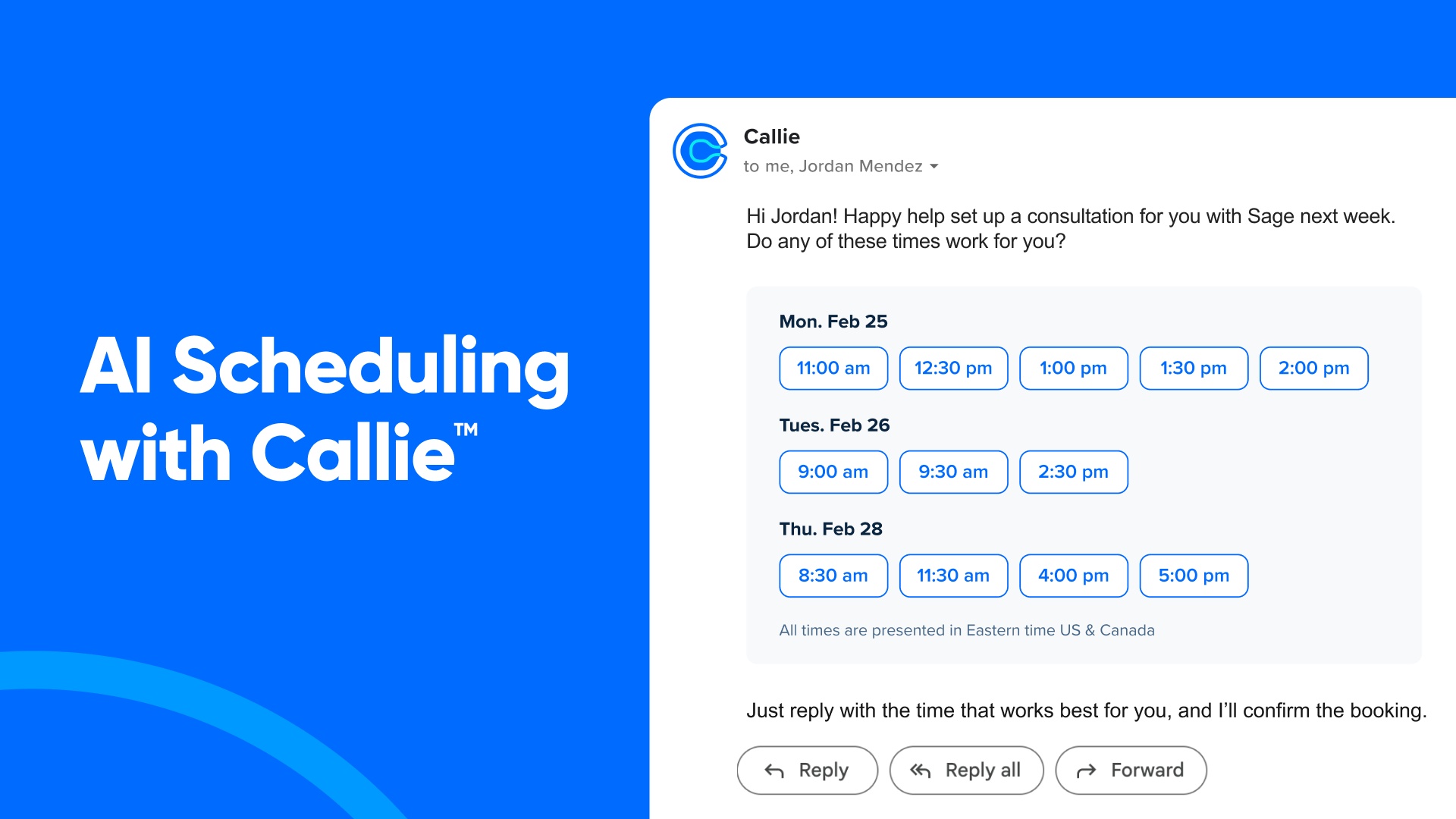
  3. Callie replies with available times. Callie responds within 1 minute. It shares up to 3 days of availability, with up to 5 time slots per day. These times are based on your calendar and preferences. If both you and your invitee use Calendly, Callie indicates times you’re both free with a green dot.
  4. Callie handles one-time changes. If your invitee needs to reschedule, extend the meeting, or book a time outside your normal hours, Callie takes care of it. Callie always checks with you before making any change.
  5. Callie books the meeting. Once a time is agreed on, Callie sends the invite to everyone.

After the meeting is booked

Once Callie books a meeting, the email thread stays open. Your invitee can reply to the same thread anytime to reschedule or request a change.

How to use Callie

To use Callie, add callie@calendly.com to the To: or CC: field in the address bar of an email. Then tell Callie what you need in your own words.

You don't need to use a specific format or template. Write naturally, the way you'd ask a real assistant. Callie understands.

Examples:

  • "Can we find 30 minutes next week?"
  • "Grab time Thursday or Friday afternoon"
  • "Schedule a call before the end of the month"

You can also be more specific if you'd like:

You can include

Examples

Date or date range

"Next week," "Wednesday–Friday"

Time or time range

"Thursday afternoon," "Friday from 10–11:30 a.m."

Time zone

"Show times in Eastern Time"

Meeting type

"Use my Phone Call event type"

If you don't specify a meeting type, Callie uses your default.

What your invitee experiences

Callie clearly identifies itself as an AI scheduling assistant—it doesn't pretend to be human. When you add Callie to an email, your invitee sees:

  • Available times in the email. Callie shows available time slots directly in the thread. If you both use Calendly, times when you're both free have a green dot.

Your invitee can:

  • Reply with a time that works for them
  • Select a time from the email options
  • Select a link to view more available times (if they need more options)

If your Event Type includes booking questions, your invitee will need to use the link to answer those questions before confirming. Otherwise, they can reply with their preferred time.

Meeting location

Callie uses the location set in your default Event Type.

If your meeting type requires a phone number (for example, a phone call), Callie will ask your invitee to provide one before confirming the booking.

You can also change the location for a single meeting without updating your Event Type. Just tell Callie in your email:

Examples:

  • "Use Google Meet for this one."
  • "Make it a phone call."

Callie makes the change for that meeting only. Your default settings stay the same.

One-time exceptions

You can ask Callie to adjust any meeting detail without logging into Calendly. Your Event Type settings won't change. Callie handles the adjustment for that meeting only.

You can make one-time exceptions for:

  • Meeting duration: "Make it a 15-minute call."
  • Meeting location: "Switch this one to Google Meet."
  • Time range (including evenings and weekends): "Share times for Tuesday or Wednesday evening, 6 to 9 p.m." or "Show availability this Saturday morning."

Callie will ask for your approval before making any change. Nothing is updated without your confirmation.

Advanced use cases

Mutual availability

If your invitee also uses Calendly, Callie detects this automatically. Times when you're both free appear with a green dot in the email. You can disable this in the Callie settings page.

Sharing times in your invitee's time zone

If your invitee has used Calendly before, Callie may already know their time zone. If so, Callie can display times in their local time automatically.

You can also request this directly: "Share times with Julia in Beijing time."

Instant booking

If you already know when you want to meet, ask Callie to book it directly. No need to wait for your invitee to pick a time.

Example: "Callie, book a meeting with Julia at 5 p.m. next Wednesday."

Callie sends the invite to both of you. Your calendars update right away.

Best practices

  • Write naturally. Callie understands everyday language.
  • Include dates and times when you have a preference.
  • Keep scheduling in one email thread.
  • Keep your availability up to date in Calendly and your connected calendar(s).

Frequently asked questions

Go to the Callie settings page to enable or disable Callie.

Note: Deleting an event type does not turn Callie off.

Callie uses your default meeting type (Event Type) when scheduling.

To update your default:

  1. Go to the Callie settings page
  2. Select a new default Event Type
  3. Select Save changes

You can also ask Callie to use a different meeting type in your email:

  • "Callie, use my Consultation event type."
  • "Callie, schedule from my Demo event type."

When you ask Callie to use a specific event type, refer to it by name plus "event type." This helps if you have multiple events with similar names. For example, say "30 minute meeting event type" instead of just "30 minute meeting."

No. Callie works within your existing settings. It uses your availability, meeting preferences, and Event Types as they are. It won't override or update any of your setup.

Callie also won't make changes to your schedule without your approval. You review and confirm updates before anything is booked or modified.

Callie changes the location for that meeting only. Your default settings stay the same. If the location requires information from your invitee (like a phone number), Callie will ask them for it before confirming the booking.

Either usually works.

  • Reply with a time: Best for quick scheduling
  • Use the link: Required if your Event Type includes booking questions

You can include this in your message: "You can reply with one of the times below, or use the link to choose another."

You can ask Callie to share times in a specific time zone: "Show times in Eastern Time."

If your invitee has used Calendly before, Callie may already know their time zone. It may display times in their local time automatically.

Only the first Callie added to an email thread will work. If someone else adds Callie after that, their version won't respond.

Callie connects to the email address you use to login to Calendly. When you send an email from that address and add Callie, it recognizes you as the sender.

Not at this time. Callie's name is set across your Calendly workspace.

Callie uses your scheduling data to suggest meeting times, draft responses, and manage bookings. It only uses the information needed to support scheduling and improve your experience.

Learn more about AI at Calendly.

Callie works directly with your Calendly account. Your schedule, preferences, and limits all come from your existing settings. Callie won't offer a time that isn't available, and it won't make any changes without your approval.

Where can I share feedback?

Click "Report an Issue" or "Give Feedback" at the bottom of any email generated by Callie

Was this article helpful?
Let us know so we can improve our content.
Related articles
Menu
Popular articles