How do I know when Notetaker is recording, and how can I stop it?
Notetaker lets everyone know when a meeting is being recorded. It also gives you a way to stop the recording at any time.
Recording notifications
When Notetaker starts recording, it posts a message in the meeting chat. This lets all attendees know the meeting is being recorded. Some meeting apps may also show their own recording alert.
Stop recording anytime
Anyone in the meeting can stop the recording. Type /stop in the chat to stop it. Attendees can also ask the host or the Calendly user to remove Notetaker from the meeting.
Advance notice
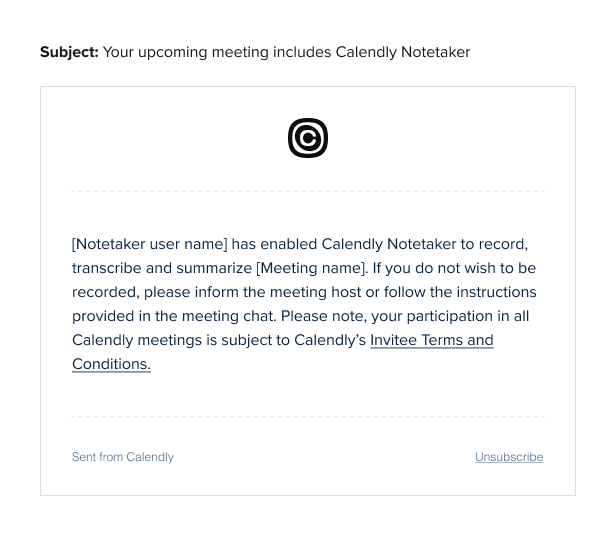
Attendees can get an email before the meeting letting them know Notetaker will join and record. You can turn these notifications on or off. Go to Settings → Notetaker to change this.
These features keep attendees informed and give everyone a clear way to stop the recording at any time.