Centro de ayuda

Descripción general de Notetaker

Actualizado 26 de marzo de 2026·7 min de lectura
Disponible para todos los usuarios en todos planes. (Disponibilidad limitada)Ver planes

Play button

Note

Notetaker is being gradually rolled out to eligible users. Únete a la lista de espera.

Notetaker provides IA-generated summaries, transcripts, and action items for your recorded meetings. Shareable via email, link, or downloadable TXT file, Notetaker recaps help you stay organized and follow up quickly.

Por ejemplo, puedes:

  • Compartir vídeos de resumen, fragmentos o notas de la reunión — con protección opcional mediante contraseña
  • Usa Search Q&A para obtener respuestas rápidas a partir de la transcripción de tu reunión
  • Habilitar plantillas de resumen adaptadas a tu industria
  • Exportar transcripciones como archivos TXT para agilizar la documentación

Ver un ejemplo de resumen.

Obtener Notetaker.

Antes de comenzar

  • Notetaker funciona con Zoom, Google Meet y Microsoft Teams incluso si no eres el organizador o la reunión no está programada a través de Calendly.
  • No se crean resúmenes para reuniones de menos de 4 minutos o sin audio.

Qué esperar cuando Notetaker se une a tus reuniones

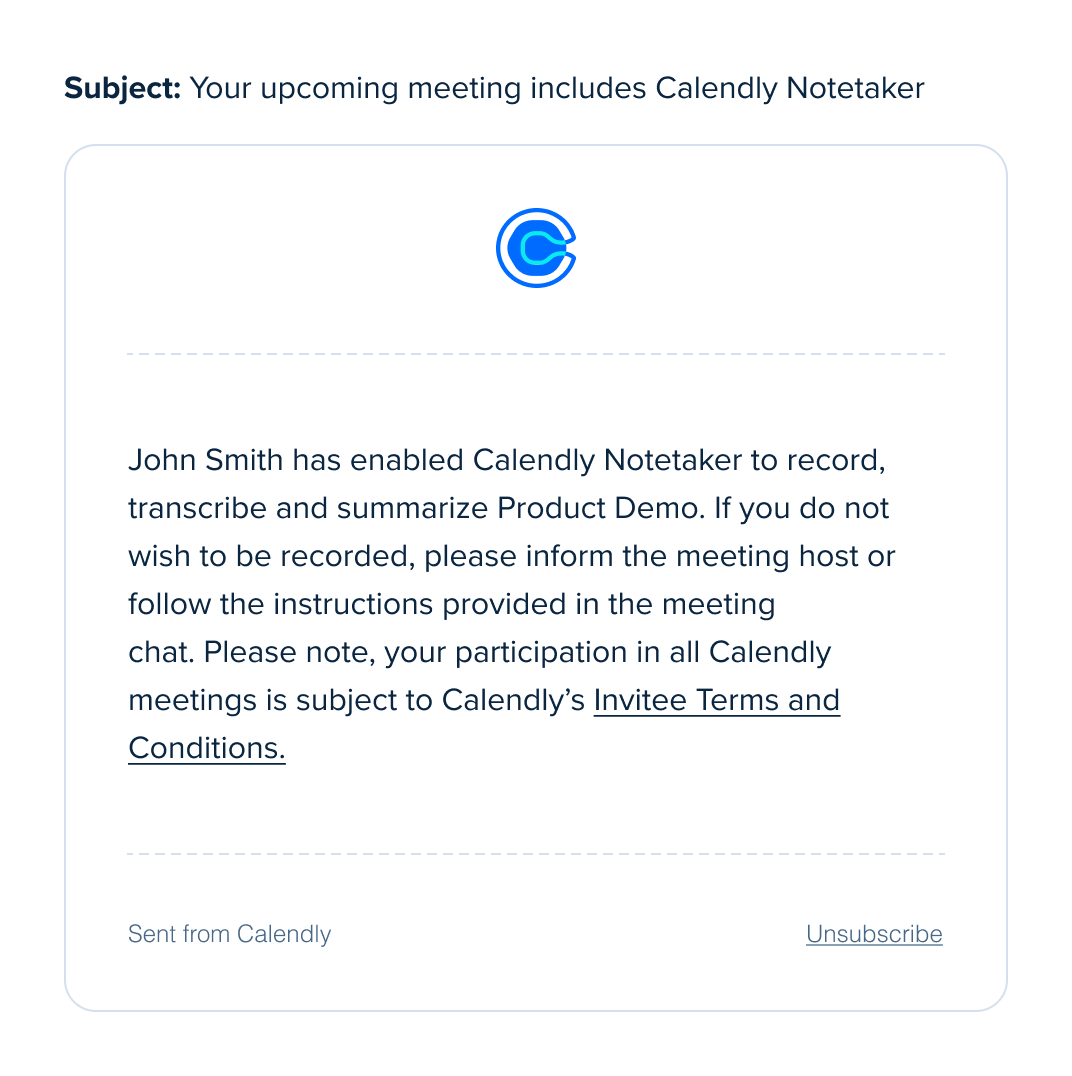
  • Si eres el organizador: Notetaker se une a tu Zoom o Google Meet a la hora programada, solicita consentimiento para grabar y comienza a grabar una vez admitido o confirmado. Aparece como participante en la llamada.
  • Si no eres el organizador: Notetaker aún se une en tu nombre, pero el organizador debe aprobar la grabación y decidir si admite o deniega la grabación. Se te notificará si la reunión está siendo grabada. Notetaker aparecerá como participante de la reunión.

Más información sobre lo que sucede cuando Notetaker se une a tus reuniones.

Configurar Notetaker

Paso 1 – Activar Notetaker

  1. Ve a Configuración de la cuenta > Configuración de Notetaker
  2. Selecciona Obtener Calendly Notetaker gratis
  3. Selecciona Siguiente

Paso 2 – ¿A qué reuniones debería unirse Notetaker?

De forma predeterminada, Notetaker graba todas las reuniones de Zoom, Google Meet y Microsoft Teams que están en tu calendario conectado.

Puedes gestionar estos ajustes en cualquier momento:

  • Activa/desactiva Todas las reuniones programadas con Calendly
    • Usa el menú desplegable para elegir tipos de evento específicos
  • Activa/desactiva Todas las reuniones programadas en calendarios conectados
    • Siempre puedes quitar Notetaker de una reunión
  • Activa/desactiva Solo reuniones con invitados externos
    • Nota: Los invitados externos tienen un dominio de correo electrónico distinto al tuyo

Cuando termines, selecciona Finalizar configuración.

¿Listo para saber más sobre Notetaker?

Añadir Notetaker a tus reuniones

Notetaker graba reuniones de Zoom, Google Meet y Microsoft Teams en tu calendario conectado. Incluye las reuniones programadas a través de Calendly y los eventos en el calendario donde se agregan nuevos eventos de Calendly.

En tu página Reuniones, las reuniones próximas y en curso mostrarán un Notetaker interruptor en el lado derecho.

34318014974615

Puedes gestionar tus reglas de grabación predeterminadas en cualquier momento desde la página Configuración de Notetaker en tu Configuración de la cuenta.

Para añadir Notetaker a una reunión:

  1. Ve a tu página Reuniones.
  2. Localiza una reunión de Zoom, Google Meet o Microsoft Teams Próxima o En curso a la que quieras añadir Notetaker.
  3. En el lado derecho, usa el interruptor para cambiar Notetaker a activado.

Note

También puedes añadir Notetaker desde la extensión de Chrome o la app móvil de Calendly.

Para añadir Notetaker:

  • En la extensión de Chrome: Abre la extensión y ve a la sección Reuniones, luego selecciona los tres puntos junto a tu reunión y Añadir Notetaker.
  • En la app móvil: Abre la app y ve a tu página Reuniones, luego selecciona tu reunión. En la esquina superior derecha, cambia el interruptor de Notetaker a activado.

Preguntas frecuentes

Calendly stores user and invitee data in secure U.S. data centers run by Google and Amazon Web Services (AWS). Learn more.

Recaps will stay available for as long as your account exists. They won’t be affected by your subscription status or account activity.

No. No utilizamos los datos de los clientes para entrenar ni afinar nuestros modelos. En su lugar, usamos prompt engineering en las transcripciones de las reuniones. Estas transcripciones no se memorizan y nos ayudan a mejorar la calidad de los resúmenes.

Calendly isn't designed to collect Protected Health Information (PHI). You may not need a HIPAA-compliant tool, please check with your legal team to confirm.

Yes. Meeting owners can delete individual recaps. Admins can delete all Notetaker data for the organization. Learn more.

You can share recaps by:

  • Sending an email directly from Calendly
  • Copying a link to the recap video
  • Exporting the transcript as a TXT file

Learn more.

Download a recap video:

  1. Go to the Recaps page.
  2. Select the recap you want to view.
  3. At the bottom left of the video, select the 34521896819351 Download icon.

At this time, you can create unlimited recaps each month.

Currently, Notetaker is only available in English.

Only the Meeting Host or an assigned Alternative Host can approve. The bot joins and waits up to 30 minutes for approval. It does not record while waiting.

If no one approves in 30 minutes, the bot leaves. No recap is created, and the Meetings page shows “The host did not allow Notetaker to record this meeting.” when hovering over "No recap available".

If an assigned Alternative Host joins, they can approve and recording starts as normal.

Note: This feature is currently in development and available to a limited group of small organizations. We’re gradually rolling it out to more users as we continue to improve it.

If Notetaker is available for your organization, yes. Owners and admins can disable Notetaker for the entire organization.

To learn how, follow the steps in How to remove Notetaker from meetings.

No. The meeting host must approve Notetaker in every new Zoom meeting.

You may see a “Remember this choice” option in Zoom. This only works for the meeting you are in. It does not apply to future meetings.

The “Remember” box helps if the host needs to approve more than one Notetaker to record a single meeting. It stops extra pop-ups in that session only.

For each new Zoom meeting, the host must approve the Notetaker again. There is no setting that lets it record all future meetings automatically.

Resolución de problemas

As the meeting host:

Notetaker didn't join my meeting

Check your account and permissions

  • Make sure you’re signed in to the same Zoom or Google account that’s connected to Calendly.
  • If you’re using Zoom, check these settings:
    • Go to Zoom Settings > Recording.
    • Turn on Record to computer files.
    • Allow external participants to request recording.

Check your Notetaker setup

  • For Calendly-scheduled meetings: Open your Notetaker settings and confirm the event type is included in your recording rules.
  • For meetings from your connected calendar: On your Meetings page, make sure the Notetaker was turned on for that meeting before the meeting started. You can only add Notetaker to meetings with two or more attendees, including the host.

Check the meeting location

  • Make sure the location on your Meetings page matches the link where the meeting took place.

Notetaker joined but didn’t provide a recap

  • When Notetaker joins, be sure to allow recording.
  • Make sure you’re signed in to the same Zoom or Google account that’s connected to Calendly.
  • If using Zoom, check these settings:
    • Zoom Settings > Recording.
    • Turn on Record to computer files.
    • Allow external participants to request recording.
¿Le fue útil este artículo?
Avísenos para que podamos mejorar nuestro contenido.
Artículos relacionados
Menú
Artículos populares